

Auditing Android mobile applications requires full control over the runtime environment. Without root privileges it is impossible to inspect certain system directories, modify the certificate store or reliably intercept HTTPS traffic when the application enforces certificate pinning or equivalent controls. This guide shows how to root an Android AVD (Android Virtual Device) from Android Studio, install Magisk and configure the Burp Suite certificate at the system level, avoiding the need for a physical device.
This procedure is the one we usually follow in our web and mobile application security audits whenever we need a reproducible, disposable and easy-to-restore environment. Instead of spending time flashing real devices, with all the risks involved, a rooted AVD gives us a full lab in minutes to approach any modern Android application.
Prerequisites
Before starting, install and configure the following components on your working distribution. Each plays a specific role in the flow, and skipping any usually leads to hard-to-diagnose errors during the rooting process.
- Android Studio with the Virtual Device Manager component and the SDK matching the API level you want to emulate.
- rootAVD, available at github.com/newbit1/rootAVD. This is the script that does all the heavy lifting: it modifies the
ramdisk.imgimage and leaves Magisk ready for first boot. - Android Debug Bridge (ADB) added to your system
PATH. We will use it to push files, run shell commands and verify the state of the emulated device. - Burp Suite (Community or Professional) properly configured with a proxy reachable from the AVD.
With all these pieces in place we can launch Android Studio and create the virtual device we will be working on.
Creating and configuring the AVD
We open Android Studio's Device Manager to manage the available virtual devices. From this window we can create, clone, duplicate or delete emulators.
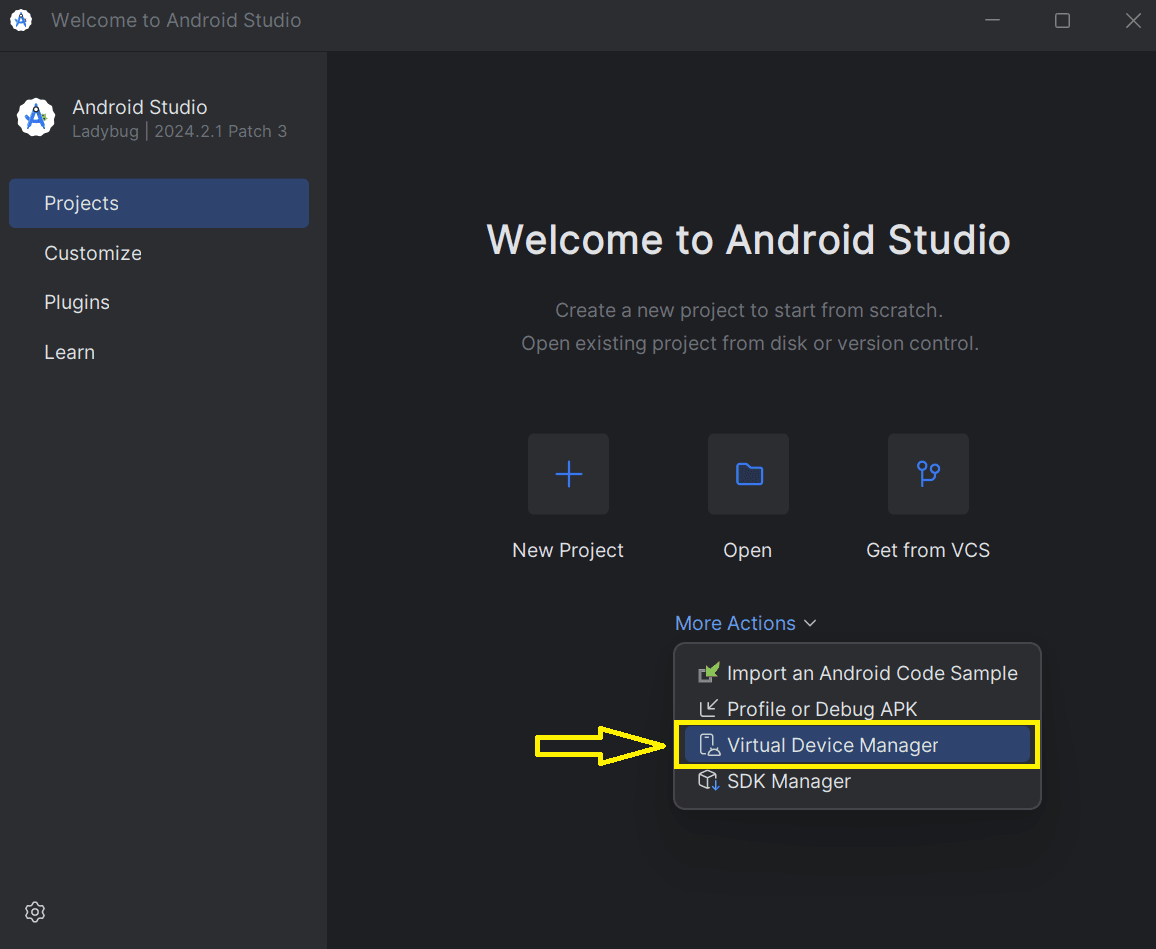
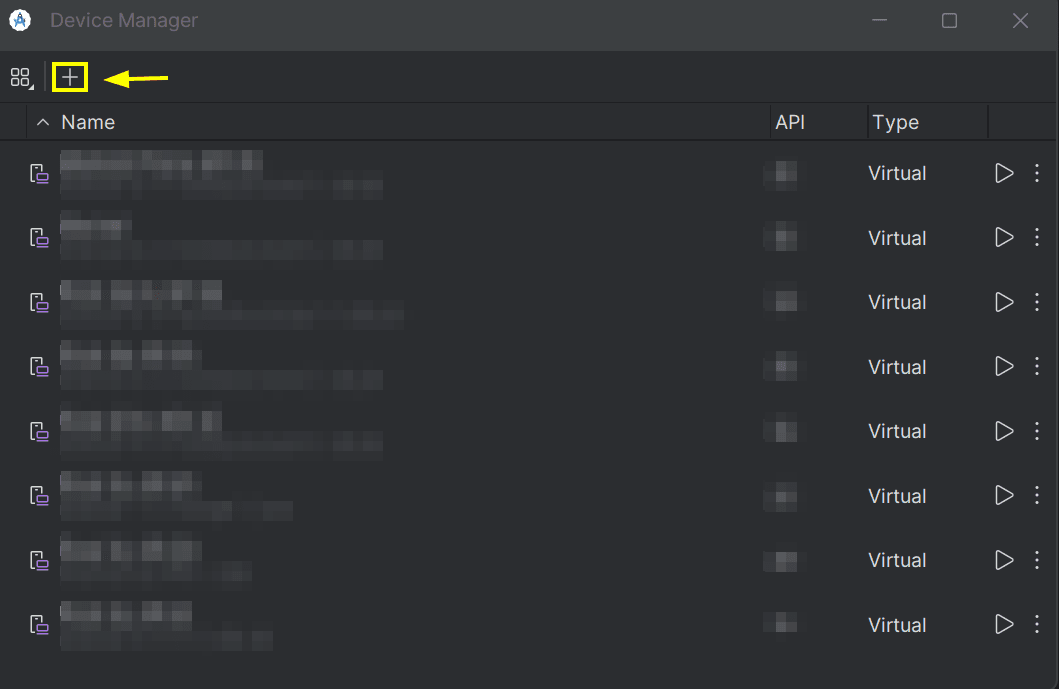
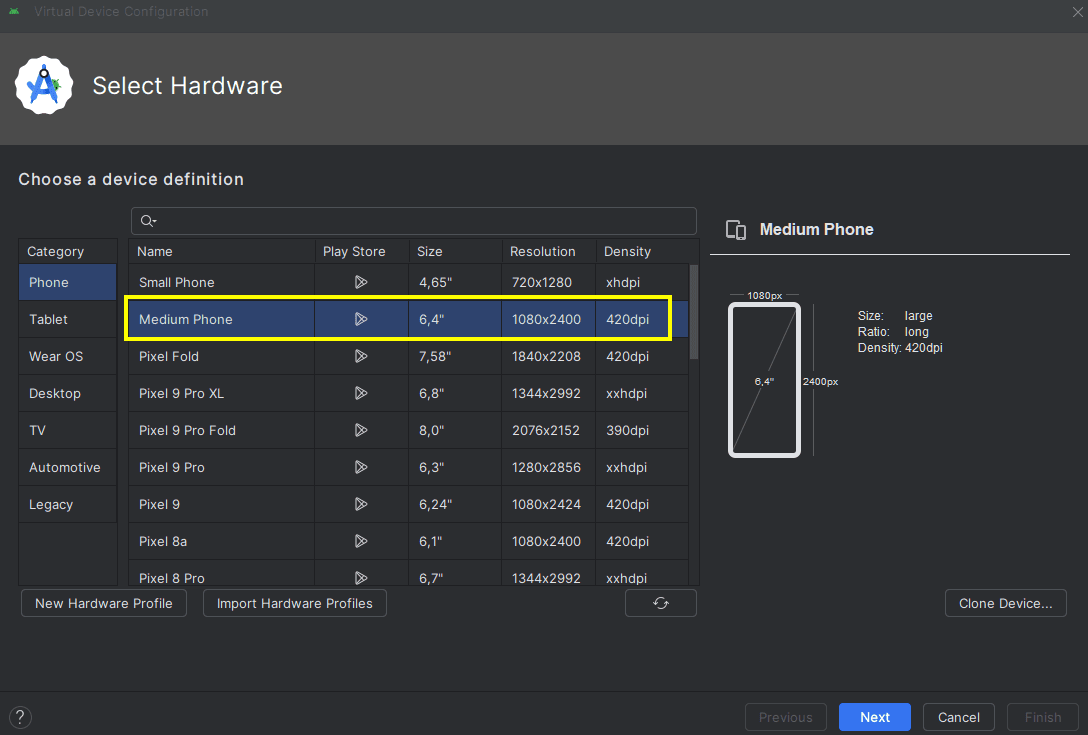
We click the "+" button to add a new device. Android Studio will ask us to pick a base model: a modern Pixel phone form factor is the option most compatible with the majority of applications.
Next we select the emulator properties: resolution, screen density, RAM, internal storage and virtual SD card. For mobile pentesting it is worth allocating at least 2 GB of RAM and 4 GB of internal storage to avoid issues when installing multiple apps.
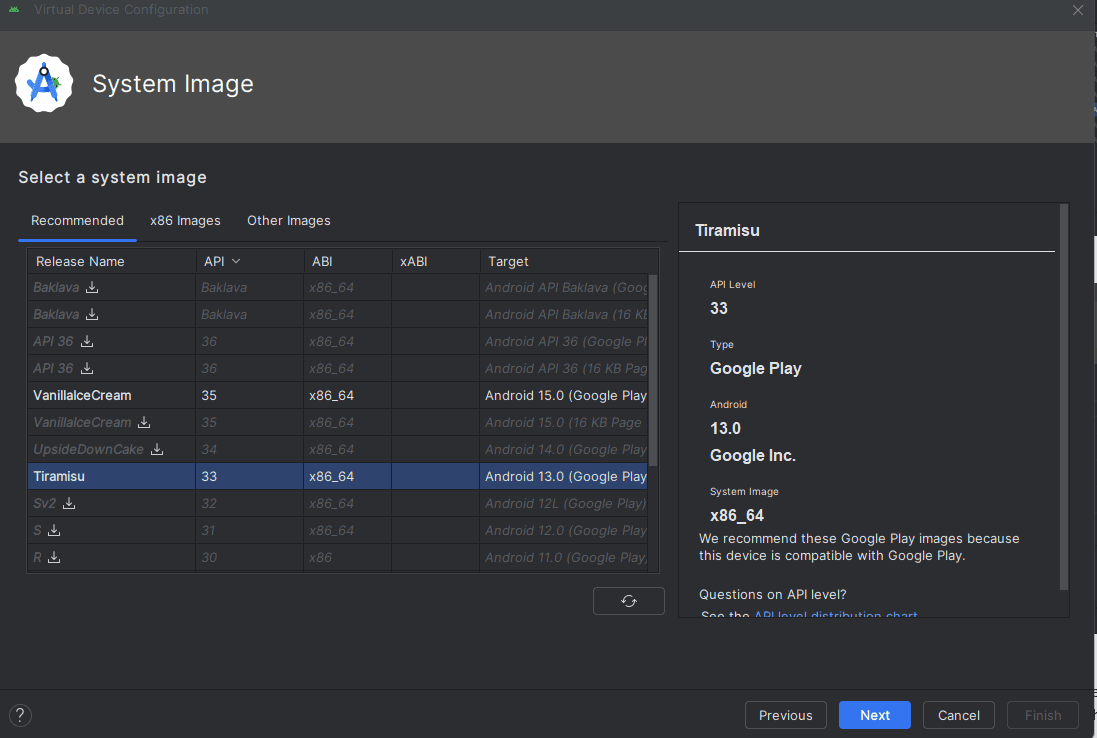
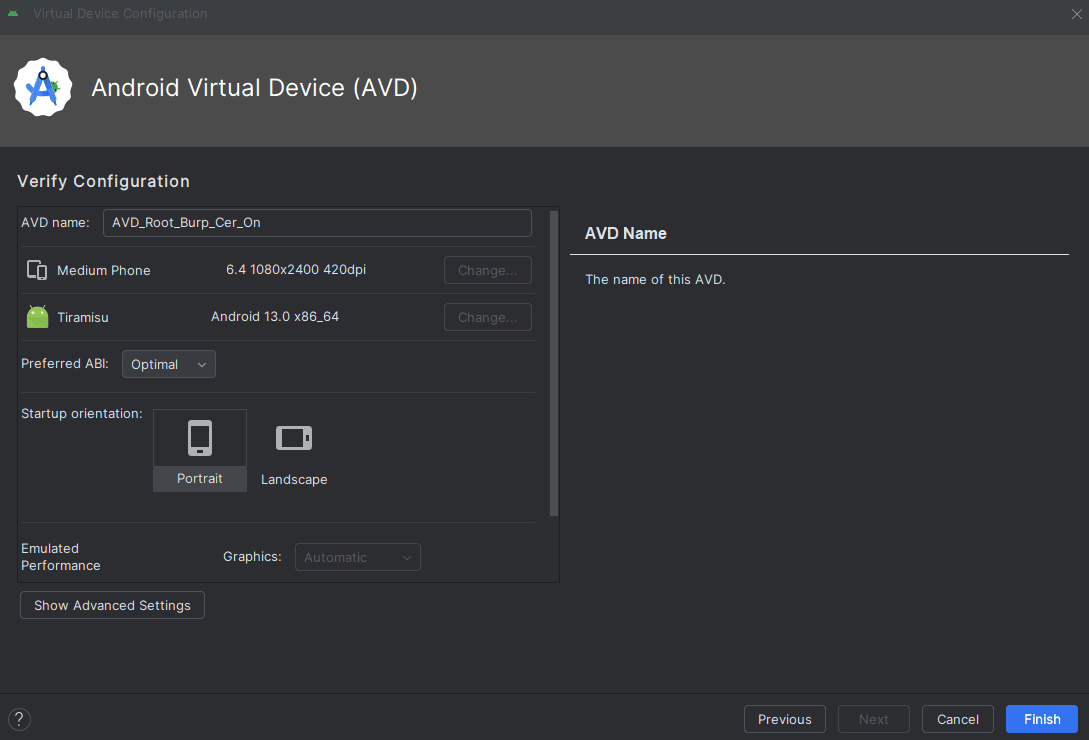
The next step is to choose the system image. Here it is very important to pick an API level appropriate for the target application: in this example we work with API 33 (Android 13) because that is what the app we want to audit requires, but any API level with Google Play Services compatible with rootAVD works.
We finish the wizard by confirming the device configuration. From now on we have a "clean" AVD in the Device Manager, still without root privileges.
Rooting the AVD with Magisk
We boot the newly created AVD. With the emulator running, we open a terminal and move to the directory where we cloned the rootAVD repository. The first step is to list the available AVDs to identify the exact image we are going to modify.
./rootAVD.sh ListAllAVDs

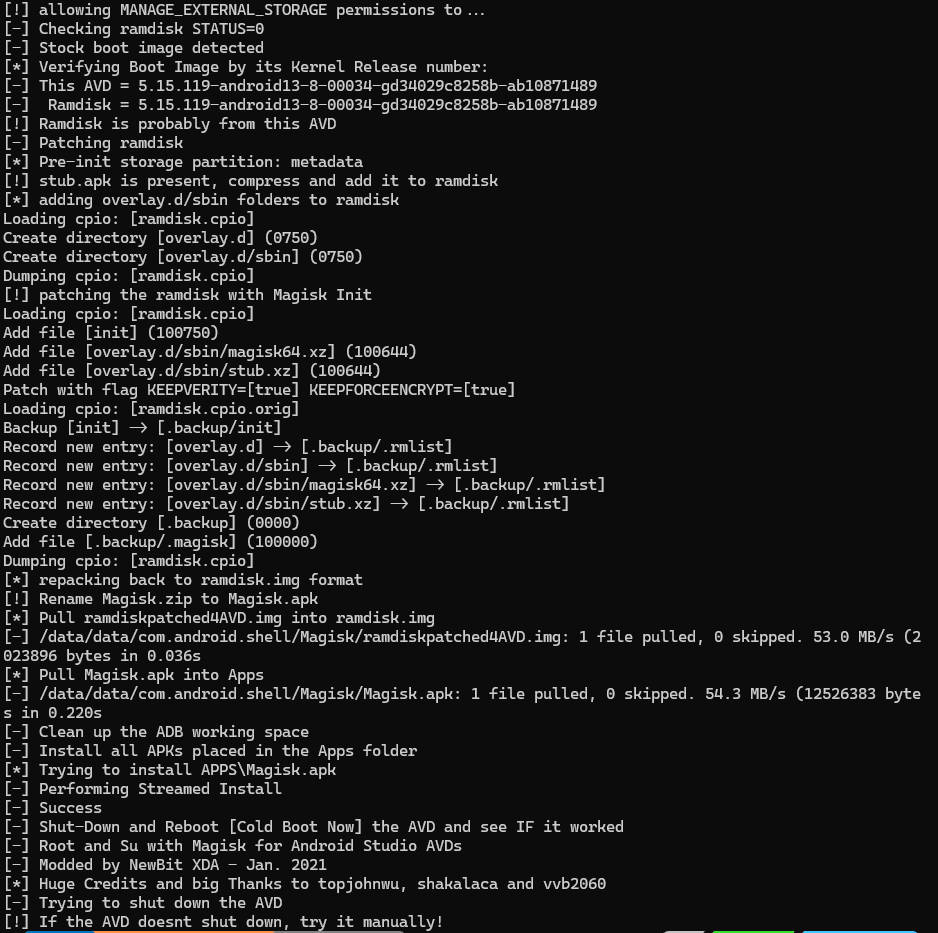
The script enumerates every system image installed on the host, with its absolute path and matching API level. We locate the line that matches our AVD's API level (API 33 in this case) and copy the command rootAVD suggests for that image. That command embeds the correct path to ramdisk.img and the required parameters to patch it with Magisk.
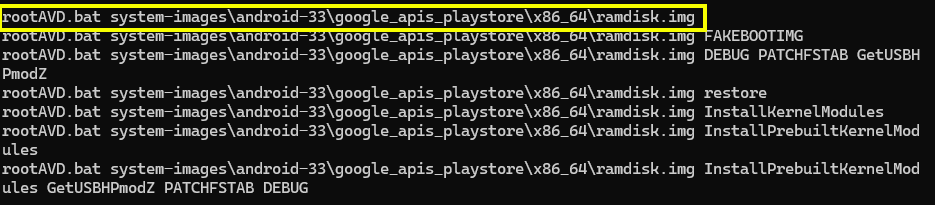
We run the command suggested by the script to install Magisk on top of the AVD image. rootAVD unpacks the ramdisk, injects the Magisk binary, repackages the image and leaves it ready for the next boot.
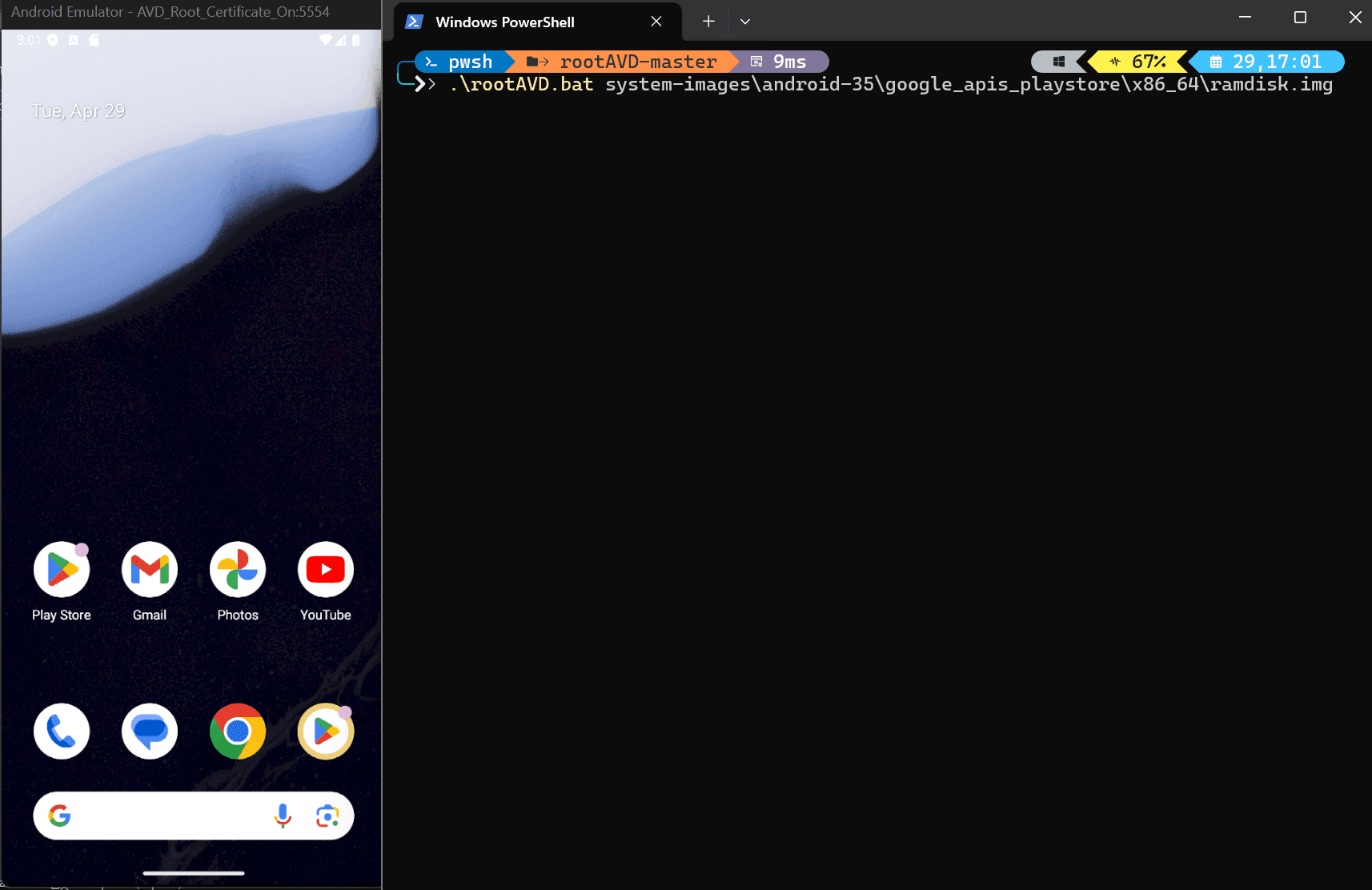
The process prints each stage to the console: ramdisk extraction, Magisk download, binary copy and generation of the new patched ramdisk. It is important not to interrupt the script or close the emulator while it is running to avoid leaving the image in a corrupt state.
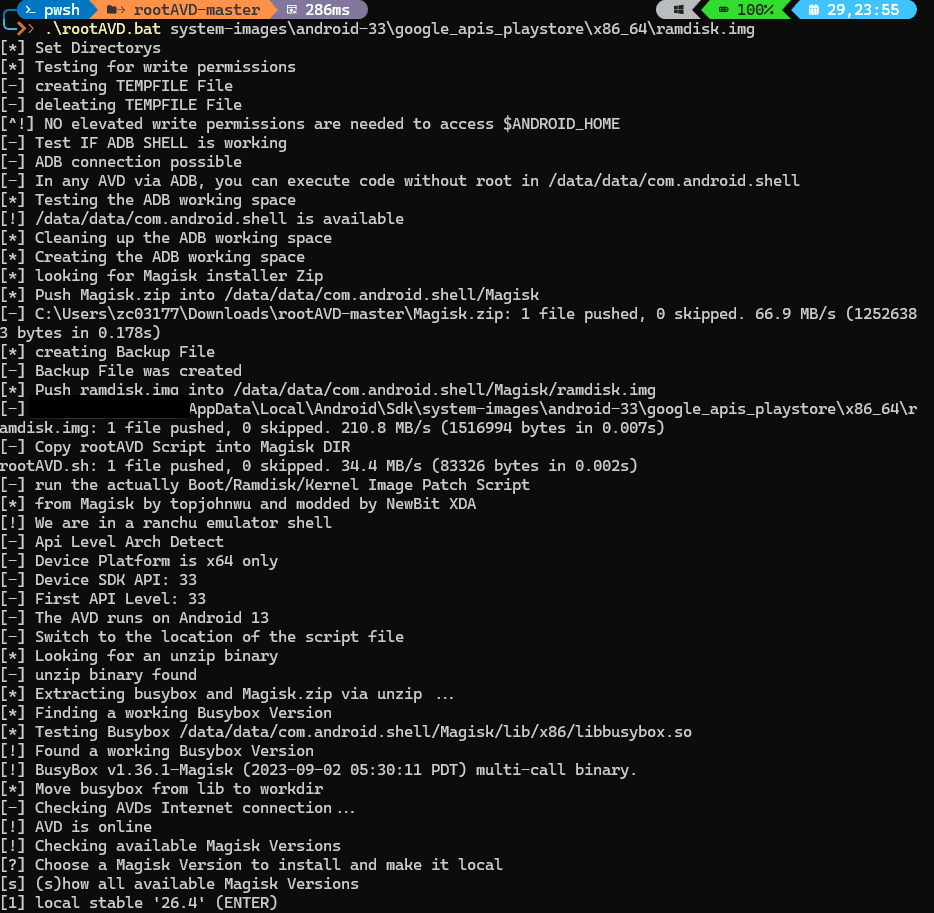
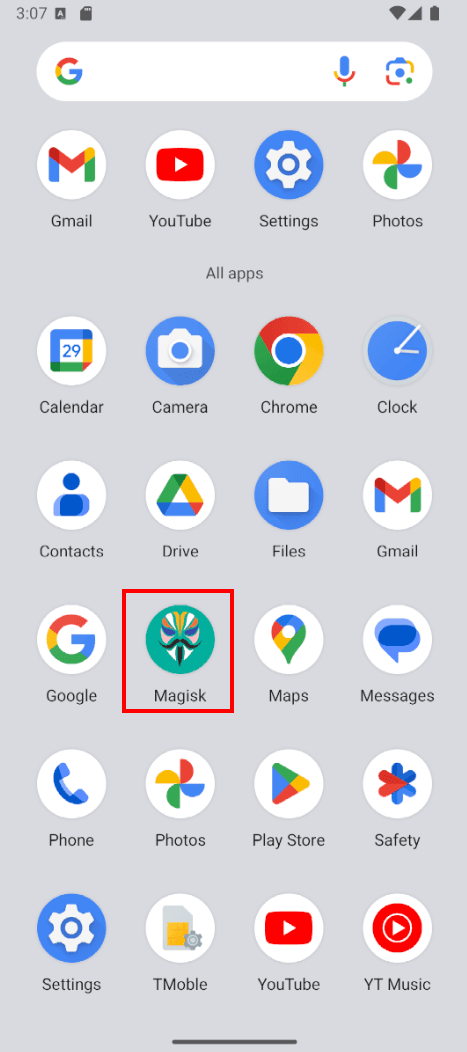
When the script finishes, we reboot the AVD. On the next boot the Magisk application should appear in the app drawer. This is the first visual indicator that the patching worked.
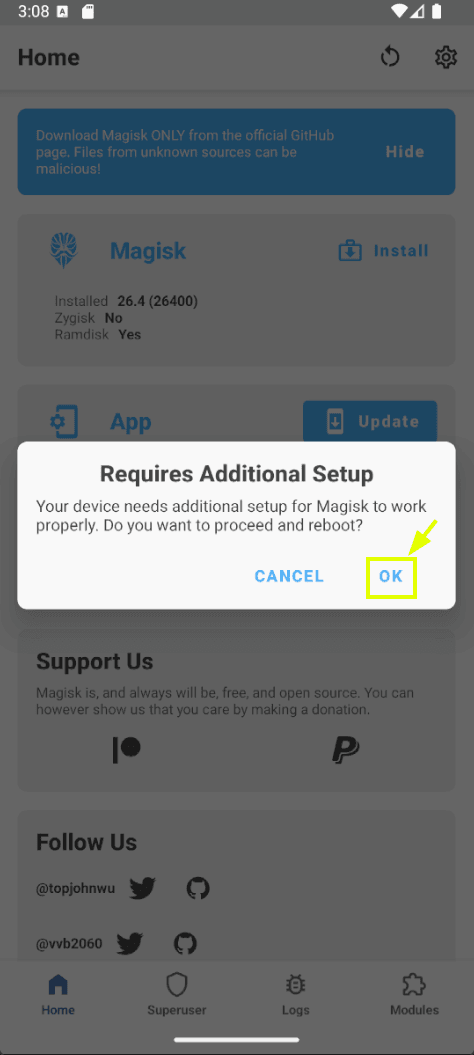
When we open Magisk for the first time it will request additional configuration to complete the installation. We accept so it can finish setting up the root environment, which will cause another automatic device reboot.
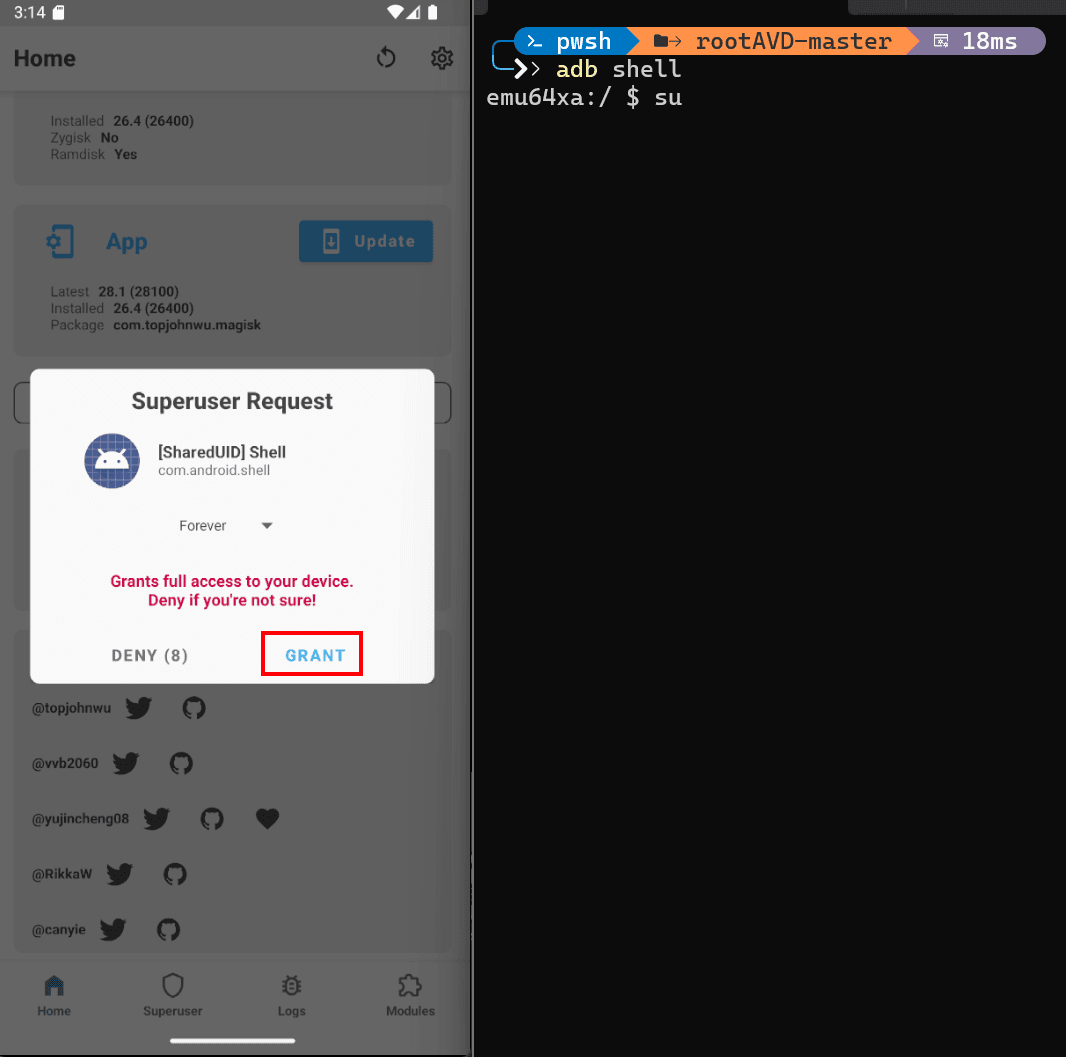
Once rebooted, we open a terminal and run the commands to get an elevated shell:
adb shell
su
Magisk will display a popup on the emulator itself asking us to authorize root access for the ADB shell. We must accept so that su returns control to the terminal. If we do not accept in time, the command fails with a permission denied and we must run it again.
To confirm that privilege escalation worked we run:
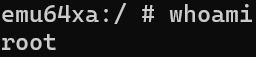
whoami
If the result is root, we have a shell with full privileges over the emulated device. This step is the smoke test of the rooting process.
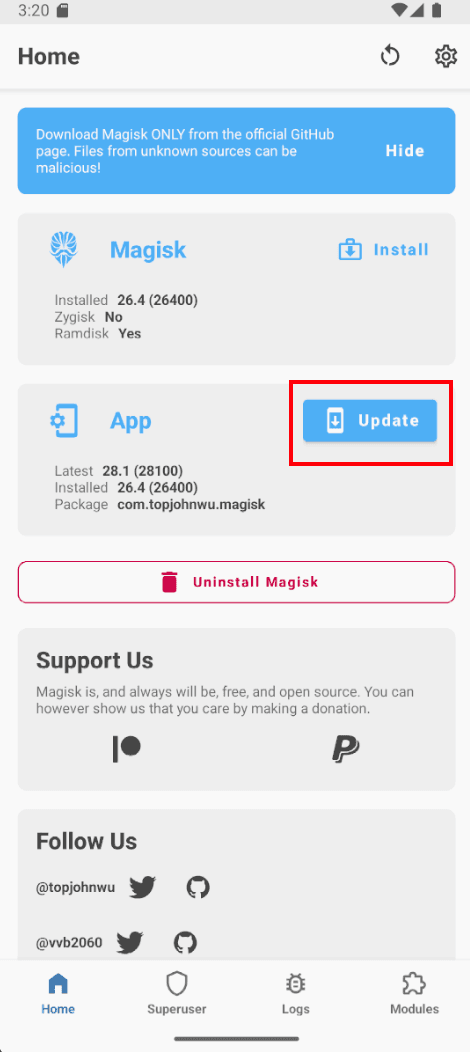
Before moving on we should open Magisk and update the application from its own interface. This internal update completes the Magisk environment installation, adjusts internal modules and consolidates the changes made by rootAVD.
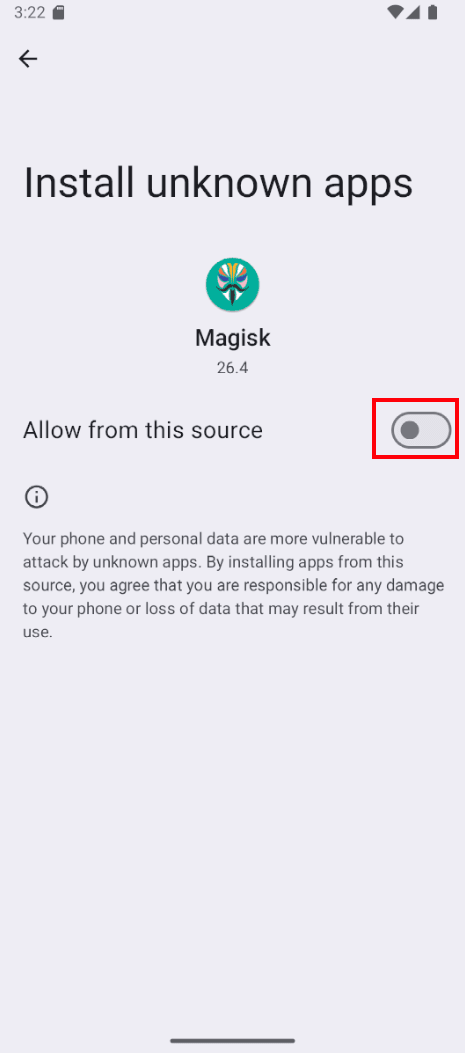
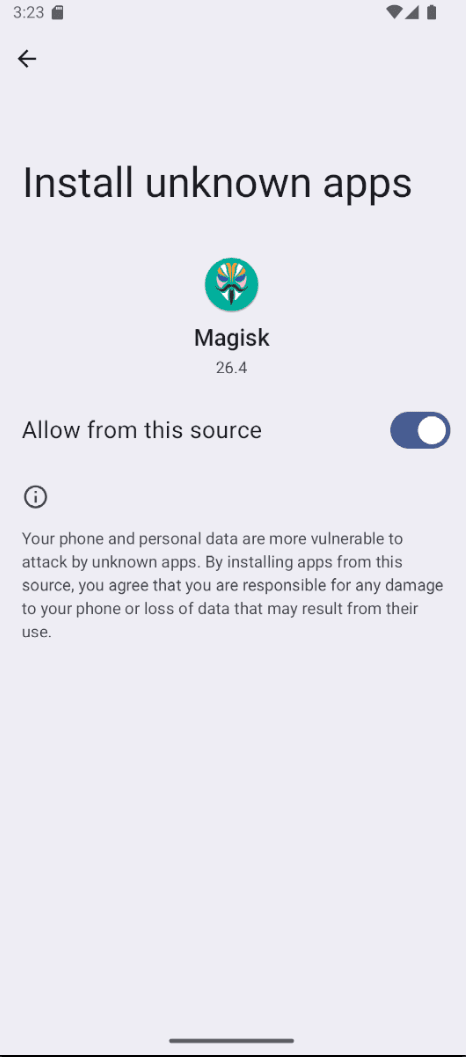
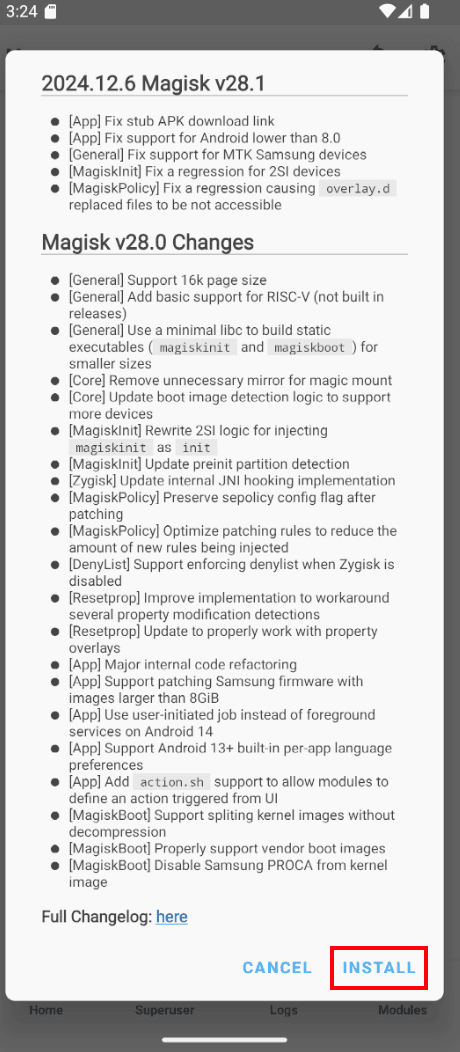
With the update complete we now have a fully operational AVD in root mode, ready for the next phase: the Burp Suite certificate.
Installing the Burp Suite certificate
To intercept an application's HTTPS traffic we need Android to trust Burp Suite's certificate authority (CA). Since Android 7, applications only trust certificates from the System store by default, ignoring certificates installed as "user". That is why simply importing the certificate is not enough: we must place it into the system store, and that is precisely why we rooted the AVD in the first place.
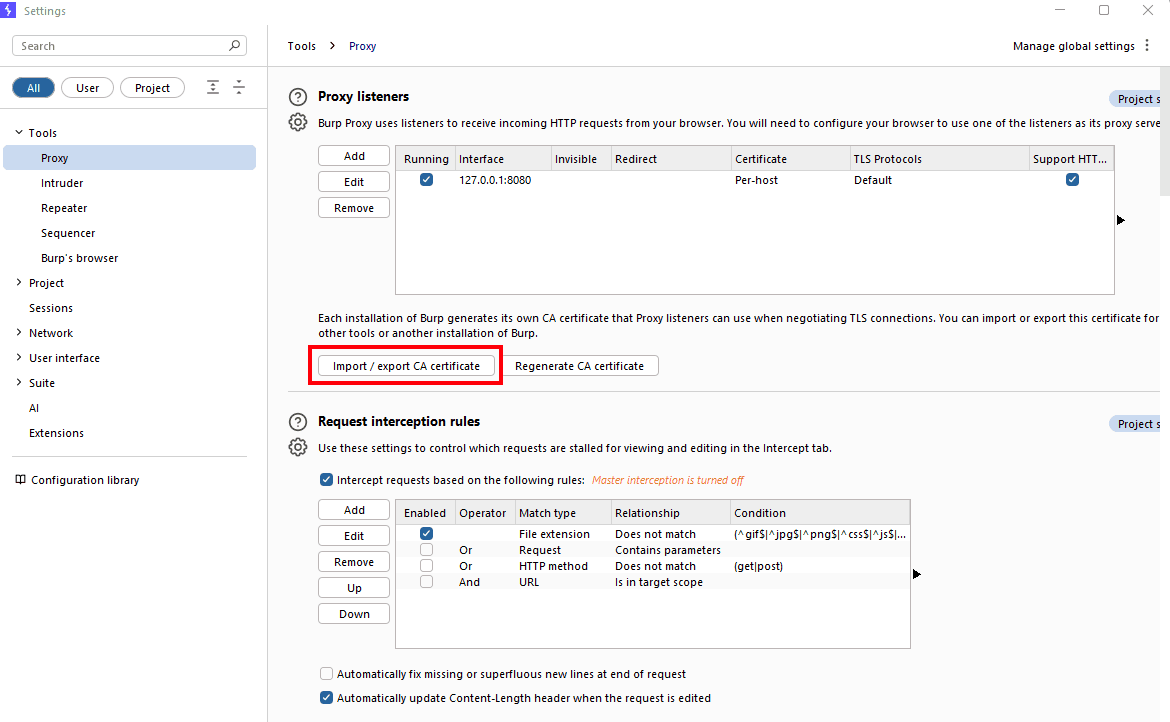
The first step is to export the CA certificate from Burp Suite in DER format. Inside Burp we open Proxy → Proxy Settings → Import / Export CA certificate and choose the corresponding option.
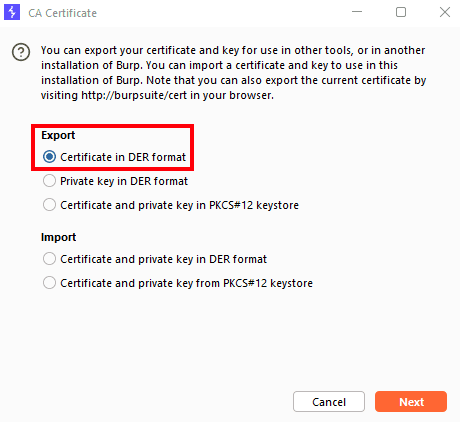
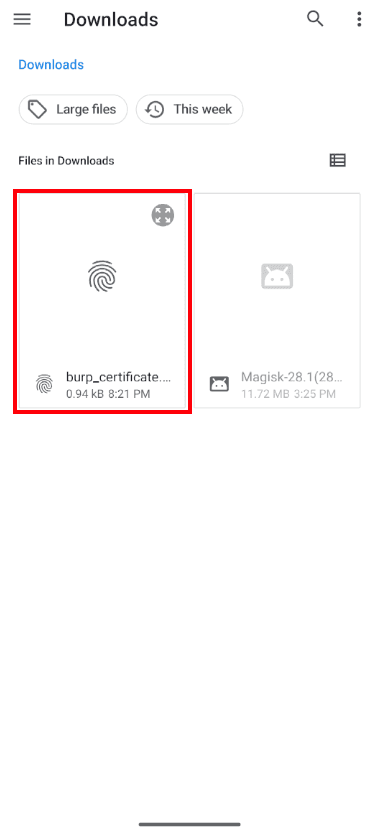
We select DER format and save the file as burp_certificate.der in a directory reachable from the host terminal.
With the certificate on disk, we push it to the emulated device using ADB:
adb push burp_certificate.der /sdcard/Download

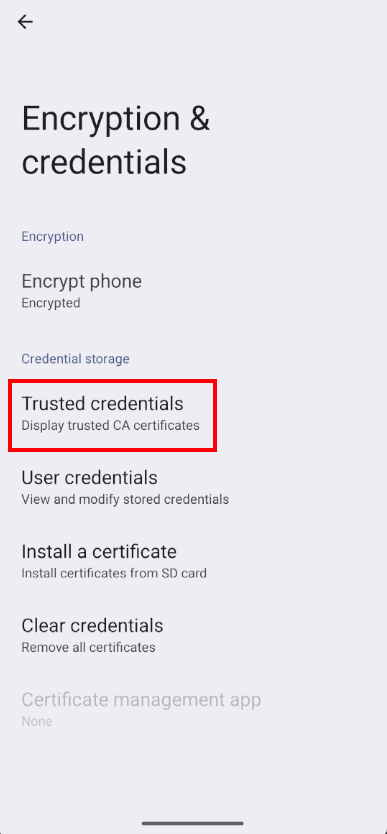
Now we install it from the AVD's graphical interface. We navigate to Settings → Security → More security settings → Encryption and credentials → Install a certificate. The exact path may vary slightly depending on the Android version, but the Encryption and credentials menu always exists in AOSP.
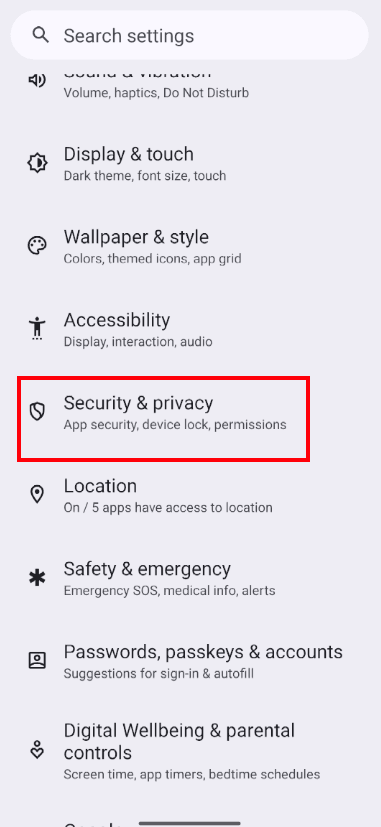
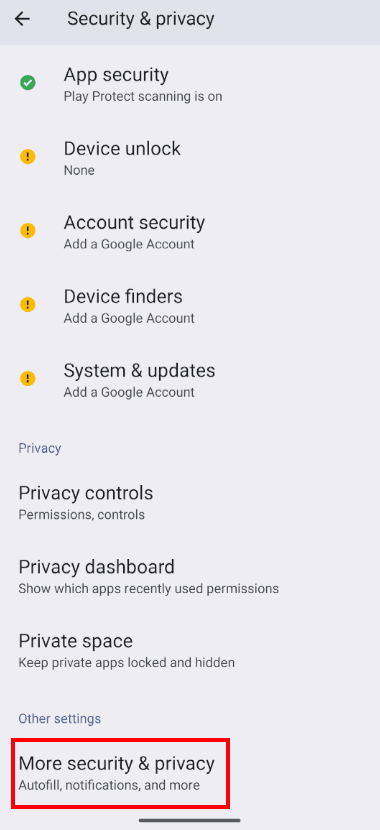
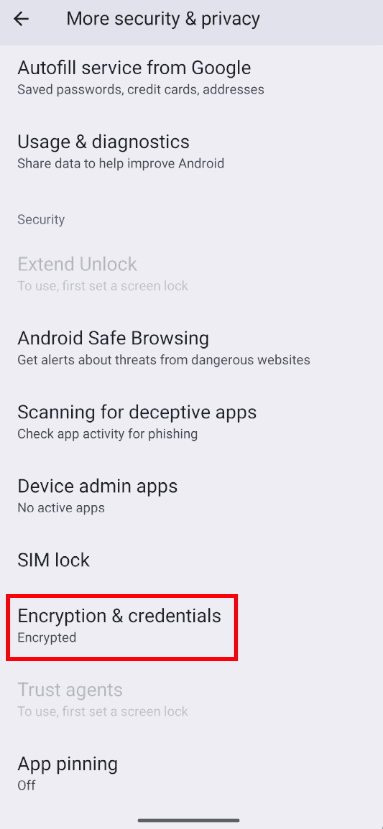
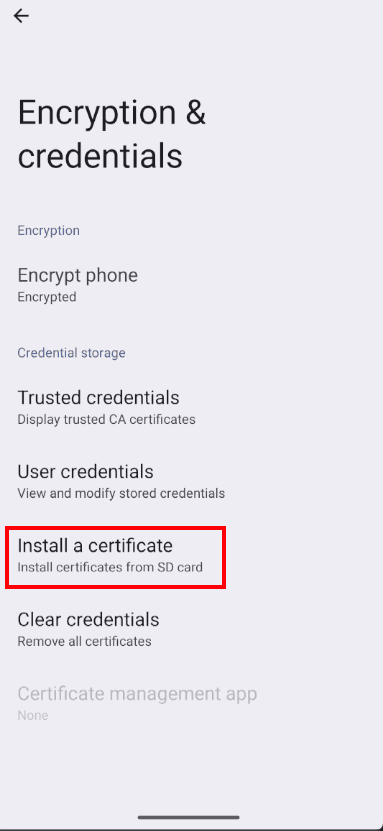
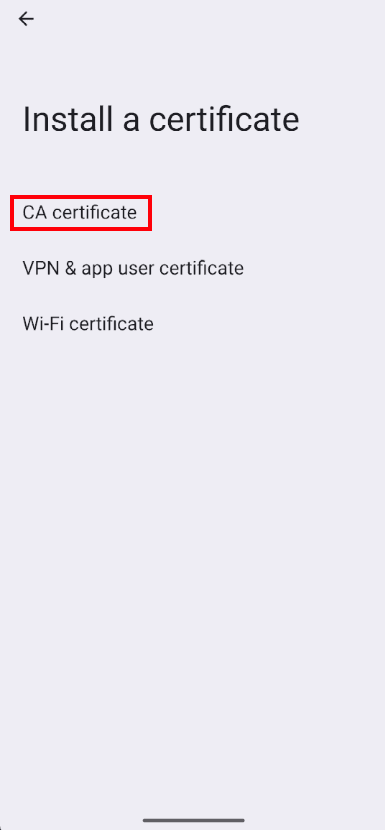
We choose to install it as CA Certificate. Android will warn about the risks of installing a custom CA; in a controlled audit environment it is acceptable to acknowledge the warning.
We verify the certificate has been registered by accessing Trusted credentials → User. At this point the certificate is installed as a user certificate but is still not trusted by modern applications.
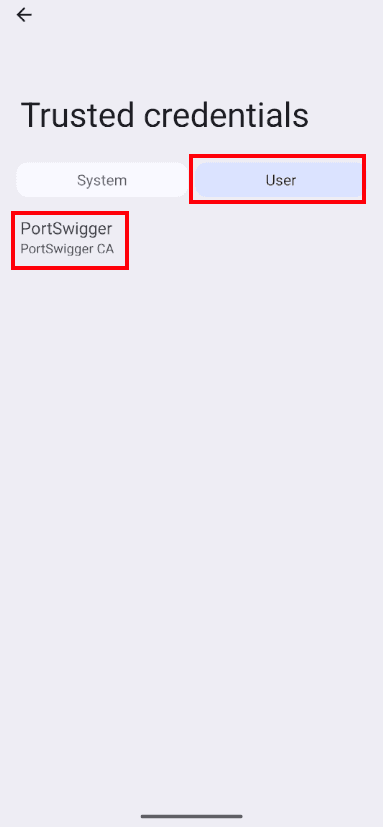
To promote it to a system certificate we use the Magisk module AlwaysTrustUserCerts, which automatically injects user certificates into the system store on every boot. We download the module from the official repository NVISOsecurity/MagiskTrustUserCerts and push it to the AVD:
adb push AlwaysTrustUserCerts.zip /sdcard/Download

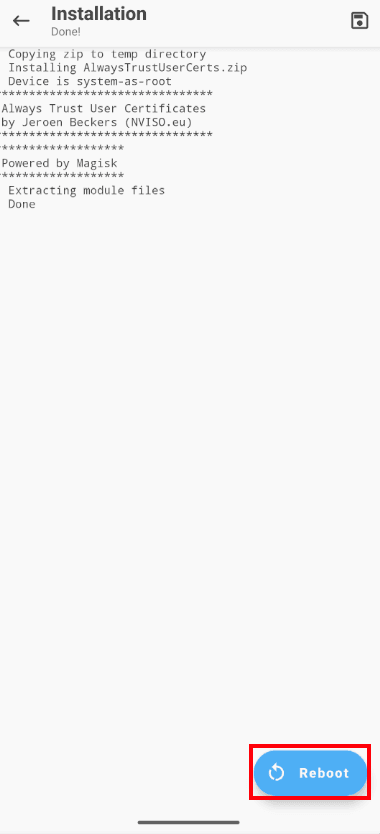
Inside the AVD we open Magisk → Modules → Install from storage and select the ZIP we just pushed. Magisk will run the module installation script.
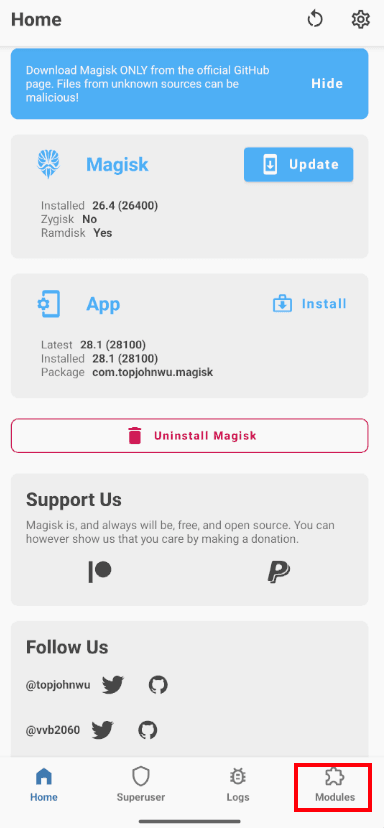
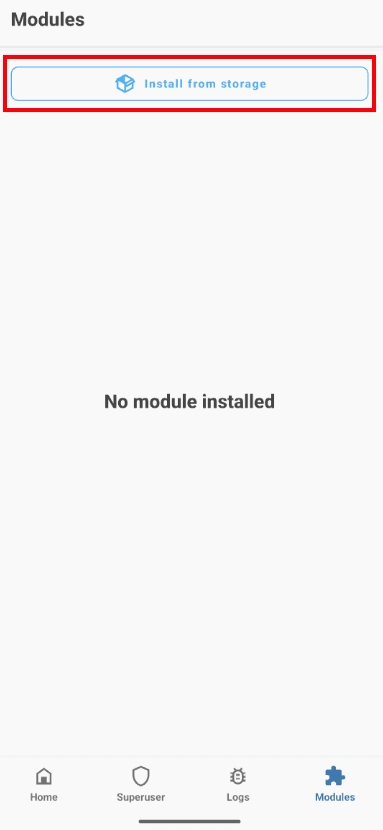
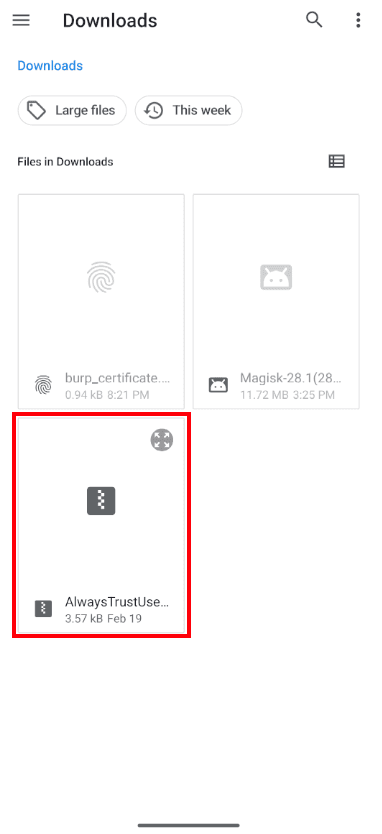
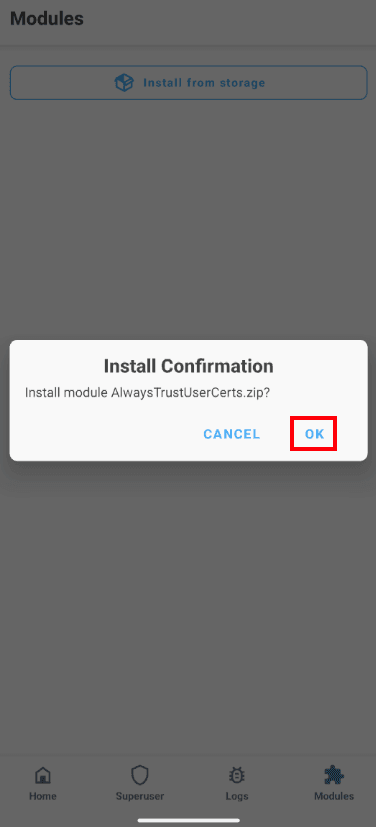
When finished we will see the module listed as installed and active. We reboot the AVD so the module can apply its changes to the system store during boot.
Verification and testing
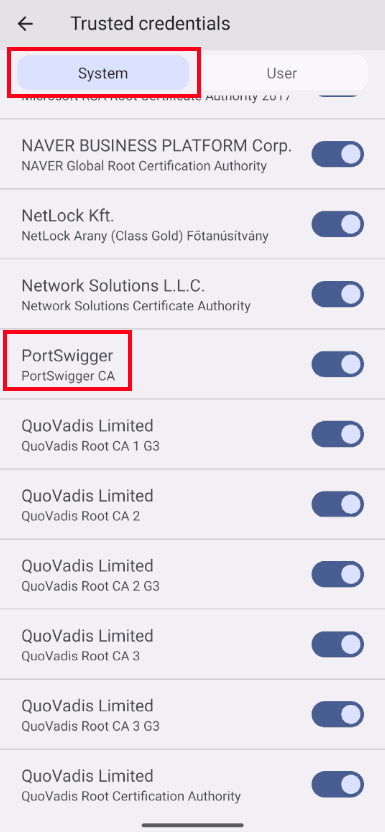
After reboot we can check that the Burp Suite certificate now appears in the system credentials, not only in the user credentials. That detail is what allows virtually any application to accept the certificate as valid without triggering TLS exceptions.
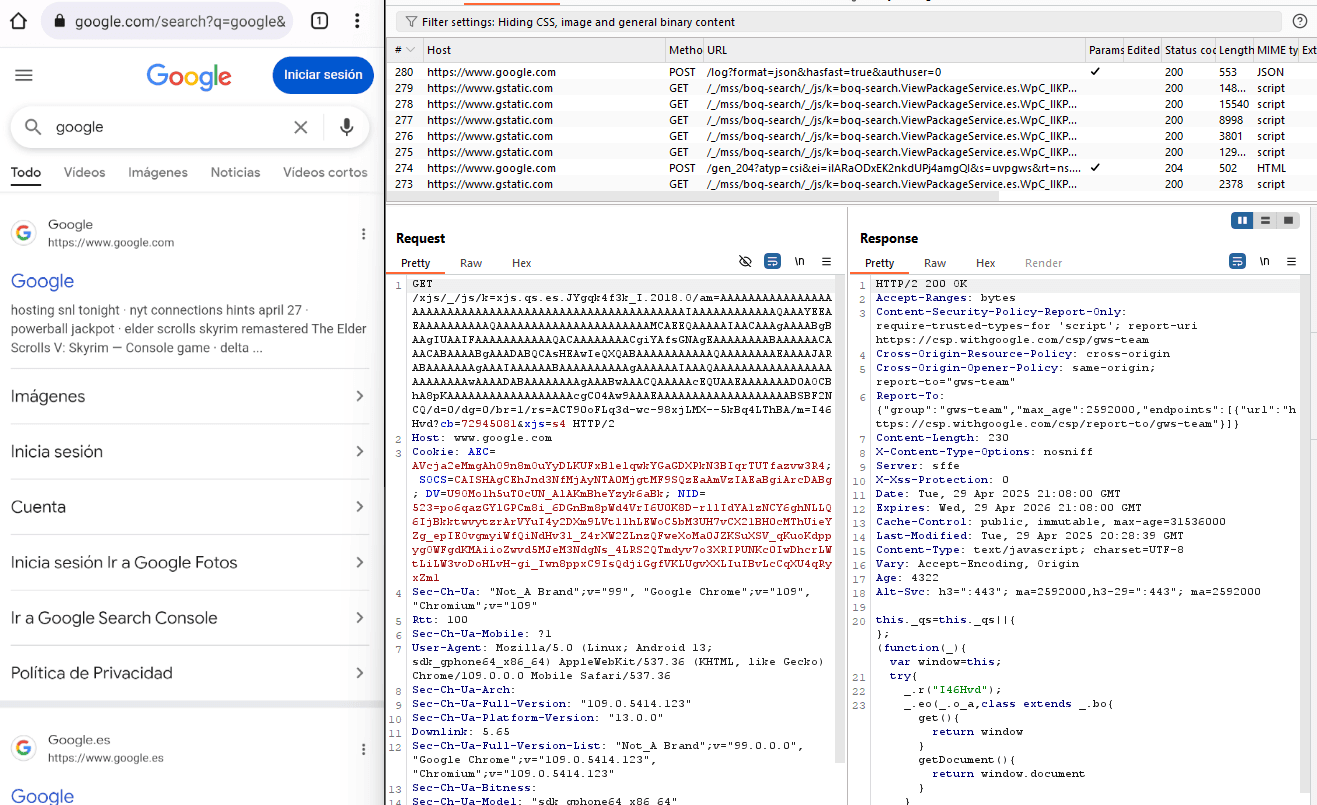
With the AVD configured to send its traffic to Burp Suite (via the emulator proxy or iptables) we can now open any application and start intercepting HTTPS traffic. If the app does not implement additional certificate pinning, we will see all its requests in plain text in Burp's Proxy tab.
From this point on, you already have a reproducible mobile pentesting lab on Android. You can duplicate the AVD to keep a clean reference image, install tools like Frida, Objection, drozer or MobSF, or even automate the setup with scripts to recreate the environment in minutes.
Final considerations
While this lab is ideal for initial testing, bear in mind that many modern applications implement evasion mechanisms such as strict certificate pinning, root detection, emulator detection or anti-debugging. In those cases rooting the AVD and placing the certificate at the system level is only the first step: you will need runtime instrumentation with Frida and Objection to neutralize those controls. We go deeper into them in the SecLabs Mobile edition where we teach these mobile pentesting techniques.
If your company develops or depends on mobile applications and needs to ensure they are robust against a motivated attacker, at Secra we run full mobile security audits aligned with OWASP MASVS and MASTG, covering both static code analysis and dynamic testing of the application running on environments like the one we just built. Contact us for a free initial assessment and you will receive a concrete roadmap to strengthen the security posture of your Android and iOS apps.
Sources
About the author
Javier Paradelo Rodríguez, CEO and co-founder
Ethical hackers with OSCP, OSEP, OSWE, CRTO, CRTL and CARTE certifications, 7+ years of experience in offensive cybersecurity, and authors of CVE-2025-40652 and CVE-2023-3512.